
I like spending my free time playing PC games, but maintaining smooth performance can be difficult on a computer with limited hardware. I began noticing random pauses, delayed in-game responses, and inconsistent frame rates in titles that had previously played smoothly on my computer. Rather than spending money on new components straight away, I started looking for practical ways to improve my PC’s gaming performance with the hardware I already had.
I found that small adjustments could make gaming more comfortable. I started closing apps I wasn’t using, choosing graphics settings that matched my hardware, and checking whether my system needed compatible driver updates.driver updates to keep gameplay running more smoothly. I also started paying more attention to tools designed specifically for gaming optimization.
My Gaming Setup Needed a Few Changes
The first thing I noticed was that my PC was running several unnecessary applications while I was gaming. I noticed that open browser pages, background tools, and unused applications continued consuming RAM and CPU resources, even when I was focused on gaming.
I started checking Task Manager before launching demanding games. Closing applications that were not important helped me make better use of the available system resources.
I also reviewed my in-game settings. I also experimented with visual settings. Reducing effects like shadows and reflections often made gameplay feel more stable, while the overall appearance of the game remained quite similar.
Why I Started Using a Game Booster
Preparing my PC before every game became a repetitive task, so I began looking for a more convenient way to handle background processes and get my system ready without making the same changes manually each time.
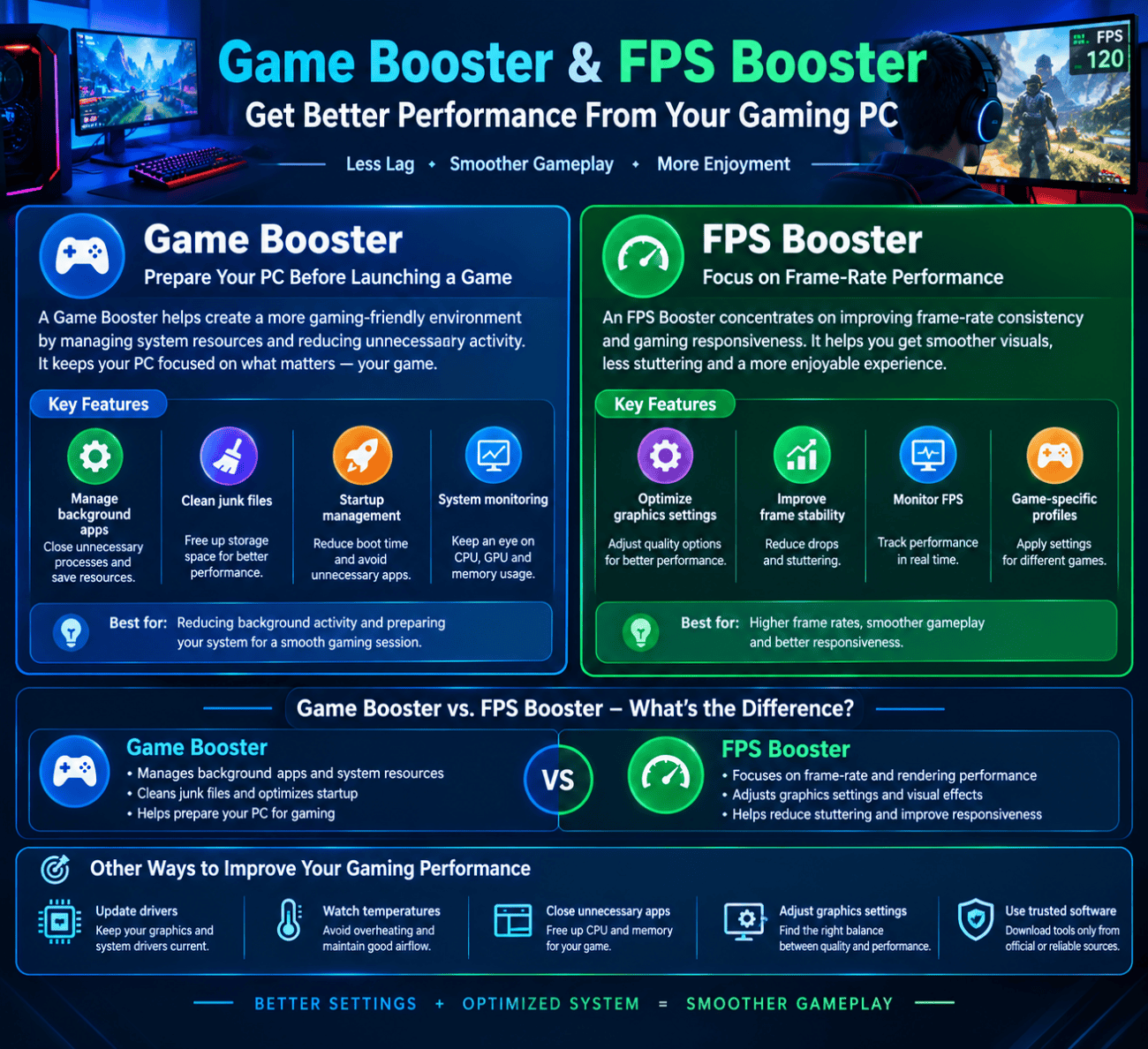
That was when I became interested in using a Game Booster. These tools are designed to help optimize a computer for gaming by managing certain background processes and providing useful performance-related options.
This method worked well for me because I wanted to avoid going through Windows settings and changing options manually whenever I planned to play a game.
Getting More Consistent Gameplay
One thing I learned is that a higher FPS number does not always mean a better gaming experience. Frame consistency also matters.
Even when a game shows a fairly high average FPS, sudden frame drops or brief pauses can still make the action feel uneven and disrupt the overall experience. I started paying attention to how smoothly games actually ran rather than focusing only on the FPS counter.
I also checked my graphics drivers regularly.I also made driver maintenance a regular part of my routine because old or incompatible drivers may lead to unexpected glitches, unstable gameplay, and reduced performance.
My Experience With FPS Optimization
I wanted to understand how an FPS Booster could fit into my gaming routine. I discovered that optimization tools can help reduce unnecessary resource usage, but their results depend on the computer and the games being played.
My attention stayed on three key things: controlling background processes, fine-tuning game visuals, and keeping the system properly maintained.
I closed applications I did not need, adjusted demanding visual effects, and made sure my PC had enough available storage. These changes helped me create a more organized gaming environment.
I knew no software could replace the benefits of stronger hardware. My aim was to get the most out of the hardware I already had and achieve smoother gameplay without expecting my current components to perform beyond their capabilities.
Small Habits That Made Gaming Easier
After experimenting with different options, I identified a few practical steps that have since become part of my usual pre-gaming routine:
- Close unnecessary applications before launching games.
- Keep graphics and essential device drivers updated.
- Monitor CPU and GPU temperatures during demanding sessions.
- Avoid running unnecessary downloads in the background.
- Adjust graphics settings according to the capabilities of my hardware.
- Keep enough free storage available for games and updates.
These steps are simple, but together they help me maintain a more stable gaming environment.
What I Learned About Gaming Performance
My main takeaway was that smooth gameplay relies on more than just a powerful graphics card. Available RAM, processor load, GPU performance, temperature, and software settings all play a role in how well a game runs.
I also realized that constantly changing advanced Windows settings is not always helpful. Disabling important services or closing unfamiliar processes can create new problems.
I prefer testing a few practical adjustments and checking the results for myself instead of applying every performance tip I see online without knowing whether it suits my PC.
My Final Thoughts
Improving gameplay does not always require investing in new components. Careful resource management and regular PC maintenance can sometimes reduce performance issues and make gaming feel more consistent.
A Game Booster can make system preparation easier by offering tools to manage unnecessary background activity. An FPS Booster may also support smoother gameplay in certain situations, although its impact depends on the PC’s specifications, the game’s demands, and the system’s current condition.
My routine is easy to follow: install relevant system updates, close apps that are not needed, and select graphics options that my PC can handle comfortably. These small steps help me focus more on playing and spend less time dealing with performance interruptions.
