
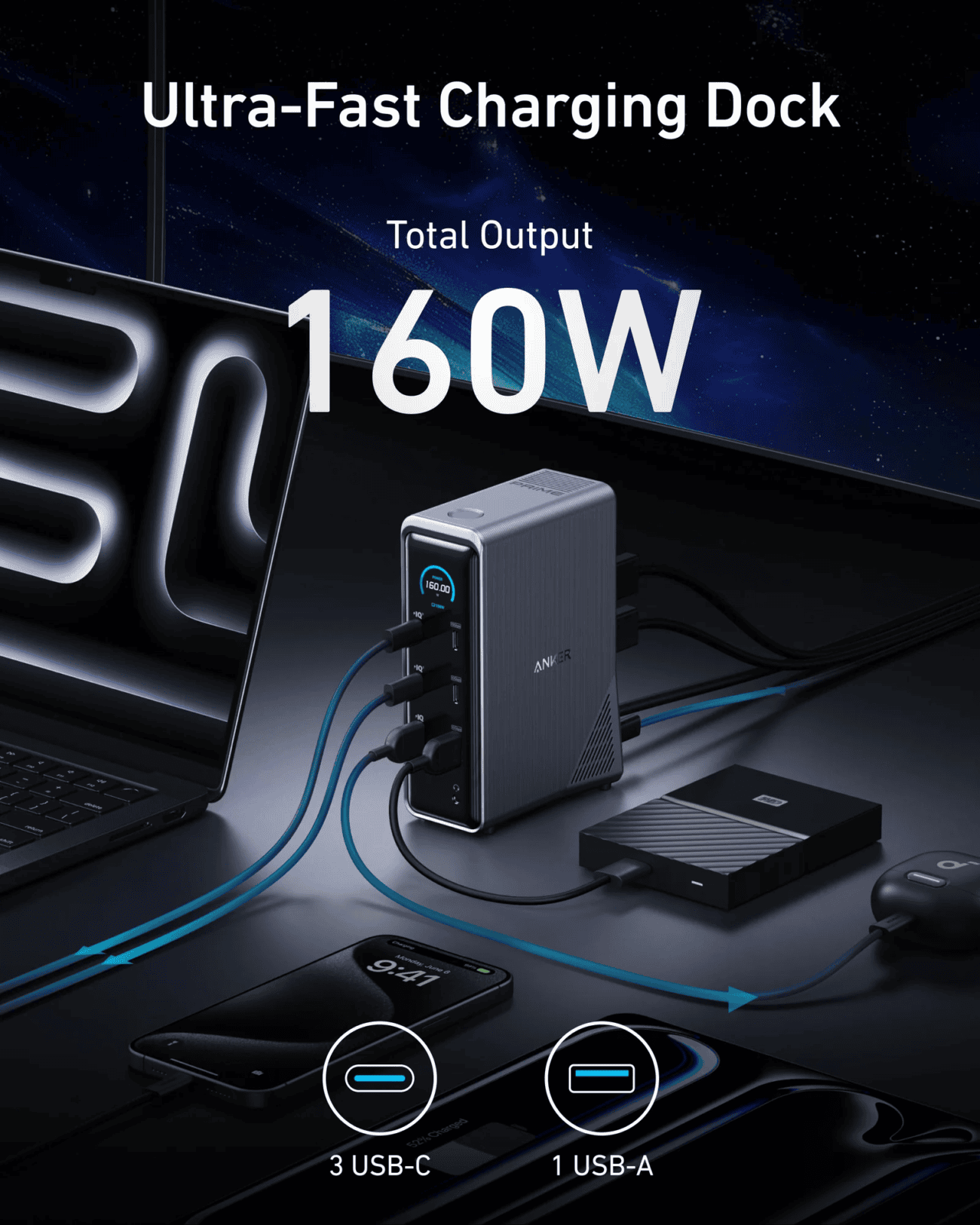
A docking station can make a MacBook workspace much easier to manage. One cable can connect a laptop to an external display, keyboard, storage devices, and other accessories. However, when the battery percentage refuses to increase, that convenient setup can quickly become frustrating. If your MacBook is not charging while connected to a dock, the problem may not be the laptop itself. The dock’s power supply, cable, connection, or charging capacity could be responsible. A few simple checks can help identify where the issue starts.
First, Find Out Whether the Dock Is Supplying Power
Start with the basics when troubleshooting your macbook docking station. Look at the battery icon in the macOS menu bar or open System Settings and check the Battery section. It can show whether the MacBook is connected to a power source and whether the battery is charging. Also check the connection between the laptop and the docking station. Disconnect the cable, inspect both connectors, and plug it back in securely. If the dock has a power indicator, see whether it is switched on and receiving electricity. Some docking stations need their own wall adapter to provide power to a connected MacBook. Connecting the dock to the laptop without powering the dock itself may allow certain data connections to work while leaving the laptop without sufficient charging power.
Check the Dock’s Charging Capacity
Not every docking station provides enough power for every MacBook. A dock may support multiple monitors and USB accessories but offer limited power delivery to the laptop. Compare the dock’s advertised host-charging output with the power requirements of your MacBook. Remember that the total power rating and the power available to the laptop are not always identical. Some of the available power may be used by connected accessories.
For example, a dock connected to several external devices may have less power available for the laptop, depending on its design. If the MacBook reports that the battery is not charging, the dock may be providing power too slowly or may not meet the laptop’s needs under its current workload.
Examine the Cable and Power Adapter
A docking station depends on more than its ports. The cable connecting it to the MacBook must support the required charging and data features. A cable that fits physically may not provide the same power or performance as the cable supplied with the dock. Check for visible damage, loose connectors, or unusual bending. If the dock uses a separate power adapter, make sure it is the correct one for that model. Avoid substituting an adapter simply because its connector fits.
A useful test is to disconnect the docking station and charge the MacBook directly using a compatible Apple power adapter and cable. If direct charging works normally, the issue may involve the dock, its adapter, or the connection between the two devices.
Test the Dock Without Other Accessories
Connected peripherals can sometimes complicate troubleshooting. External drives, displays, phones, and other accessories may draw power from the dock. Disconnect unnecessary devices and leave only the MacBook connected. Check whether charging begins. If it does, reconnect the accessories one at a time. This can help identify whether a particular device or combination of accessories is affecting the dock’s available power.
Also try another compatible port if the docking station provides more than one laptop-facing or charging connection. Follow the manufacturer’s instructions because not every USB-C port on a dock is designed to charge the host computer.
Consider Battery Temperature and macOS Settings
Charging behavior can also depend on the MacBook’s temperature and battery management settings. If the laptop becomes unusually warm during demanding work, charging may be temporarily limited until its temperature returns to a suitable range. macOS also includes Optimized Battery Charging, which can delay charging beyond approximately 80% in certain circumstances to help reduce battery aging. This does not necessarily indicate a faulty dock or battery.
Check the Battery settings before assuming something is broken. If the MacBook displays a battery health warning or continues to report a charging problem after basic checks, further inspection may be necessary.
Keep the Docking Station in Good Condition
A little maintenance can prevent connection problems, especially when troubleshooting a macbook not charging issue. Place the dock on a stable surface with enough airflow, and avoid covering it with papers or other objects. Keep cables organized so they are not pulled or twisted whenever the laptop moves. Dust and debris around connectors can also interfere with a reliable connection. Disconnect the equipment before cleaning, and use a dry, appropriate cleaning method. Never insert metal objects into charging ports or attempt to open a power adapter. If the dock becomes unusually hot, smells burnt, or shows physical damage, stop using it and contact the manufacturer.
Final Thoughts
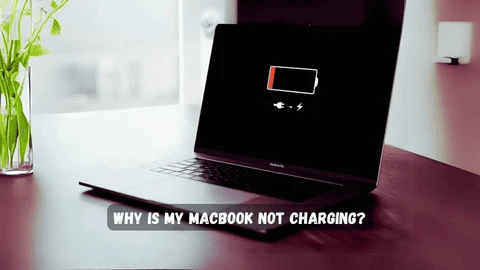
When a MacBook is not charging through a docking station, the cause may be a power limitation, unsuitable cable, adapter issue, connected accessory, or battery setting. Start by checking the power supply and connections, then test the laptop directly with a compatible charger. These steps can help narrow down the problem without replacing equipment unnecessarily. A suitable MacBook docking station should support the laptop’s charging requirements as well as its other connected devices.
Frequently Asked Questions
Can a MacBook docking station charge a MacBook?
Yes. Many docking stations support laptop charging through USB-C or Thunderbolt, but their power output varies. Always check compatibility and charging specifications.
Why does my MacBook show that it is connected but not charging?
The power source may not provide enough power, or macOS may temporarily pause charging because of battery management or temperature conditions. Check the Battery settings and dock specifications.
Can a docking station charge a MacBook while using an external monitor?
Yes, if the dock supports both functions and provides sufficient power. The connected display and other accessories may also use some of the dock’s available power.
Should I use my MacBook’s original charger with a docking station?
You can use a compatible original charger to test direct charging. Whether it can also power the dock depends on the dock’s design and manufacturer instructions.
How do I know if my docking station is faulty?
If the MacBook charges normally with a direct charger but repeatedly fails to charge through the dock, the dock, its adapter, or its cable may be responsible. Testing with compatible equipment can help confirm the cause.
READ ALSO: https://elightmag.com
