
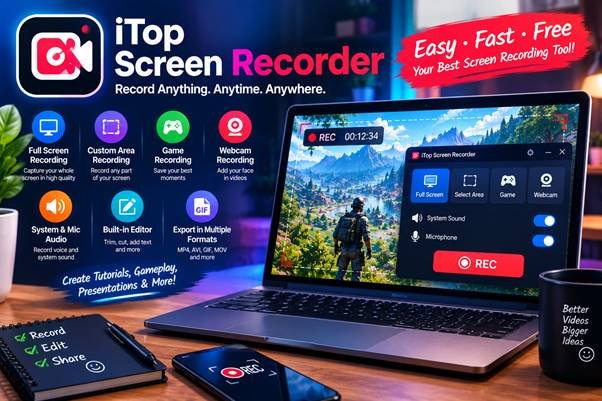
Recording what happens on a computer can be useful for many reasons. A student may need to save an online lesson, a gamer might want to share an important match, or a business professional may need to demonstrate how a particular application works. Whatever the purpose, having a reliable recording application makes it easier to turn on-screen activities into videos that can be watched or shared later.
A good screen recorder should do more than capture everything displayed on a monitor. Audio selection, webcam support, recording controls, and suitable export options can make a considerable difference to the final result. iTop Screen Recorder is one application that brings several of these capabilities together for Windows users.
Capture Exactly What You Want to Show
Recording an entire desktop is not always necessary. Sometimes, you only need to demonstrate one application or explain a particular section of a webpage. Selecting the recording area helps keep the final video focused on the important information.
iTop Screen Recorder offers several capture options, including full-screen recording, selected regions, individual windows, and fixed aspect ratios. This flexibility allows users to choose a recording area according to their project.
For example, someone preparing a software tutorial can capture only the application being demonstrated instead of showing unrelated desktop activity.
Benefits of flexible recording include:
- Keeping tutorials focused on relevant information.
- Avoiding unnecessary desktop content.
- Preparing videos for different screen layouts.
- Recording a specific application without capturing the entire monitor.
- Making demonstrations easier for viewers to follow.
Combine Screen Recording With Your Own Voice
A visual demonstration becomes more useful when viewers can hear an explanation alongside the actions taking place. This is particularly important for educational videos, software instructions, and professional presentations.
iTop Screen Recorder allows users to configure microphone and speaker audio during screen capture. This means you can explain a process through your microphone while recording the sounds produced by the computer.
The application also supports webcam recording, including the option to show a webcam overlay alongside screen content. This can help presenters maintain a personal connection with their audience while demonstrating software or explaining a subject.
These features can benefit teachers, online trainers, remote workers, and content creators who want to produce more informative recordings.
More Than a Basic Recording Application
One reason to examine a dedicated recording utility is the additional control it provides during production.
The iTop Screen Recorder includes separate recording modes for screen activity, webcam footage, audio, and gameplay. Its game recording mode also provides gameplay-related controls and an FPS display while recording, according to the product manual.
Other useful capabilities include:
Mouse highlights: Visual effects can make mouse movements and clicks easier to follow in instructional videos.
Recording controls: Users can pause, resume, and finish recordings through the available controls and keyboard shortcuts.
Screen annotations: The floating toolbar provides drawing and highlighting options for emphasizing particular details.
Multiple output formats: The application supports several video and audio formats, allowing users to select an appropriate format for their intended use.
Editing options: Recorded footage and existing videos can be edited using the application’s available editing features.
Together, these capabilities can reduce the need to move between multiple applications for basic recording and editing tasks.
Where Can You Use a screen recorder?
A recording application can support several everyday activities beyond making online tutorials.
For education, students can save explanations, demonstrations, and presentations for later reference. Teachers can prepare instructional videos that explain complicated procedures step by step.
Gamers can capture memorable gameplay, record strategies, and share their experiences with online communities. Depending on the computer’s hardware and recording settings, they can also adjust video quality to suit their requirements.
Businesses can use recordings to demonstrate software features, train employees, and explain internal procedures. Customer support teams may also find screen capture useful when preparing instructions for resolving common problems.
Content creators can combine desktop footage, microphone commentary, and webcam video to develop more engaging material for their audiences.
Prepare Your Settings Before Pressing Record
A little preparation can help prevent problems during recording. First, select the area you want to capture and decide whether your microphone, computer audio, or webcam should be included.
Next, review the output resolution, frame rate, and video quality settings. Higher-quality recordings can require more storage space and processing resources, so choose settings that suit your computer and intended project.
It is also useful to close unnecessary applications before starting a lengthy recording. This can reduce background resource usage and help avoid interruptions.
Always make a short test recording before capturing an important presentation or gameplay session. Check that the microphone is audible, the video looks clear, and the final file plays correctly.
Final Thoughts
Choosing the right recording software can make educational, professional, and entertainment projects easier to manage. iTop Screen Recorder provides several recording modes, audio controls, webcam support, gameplay capture, and editing options for different Windows recording needs.
Whether you are explaining a computer process, saving a lesson, or recording a gaming session, a suitable screen recorder can help turn everyday desktop activities into useful video content. With the right settings and a little preparation, you can create recordings that are easier to understand, review, and share.
